I Deleted 10GB on Linux. Why Was My Disk Still Full?
A deleted filename, an open file descriptor, and the production judgment behind recovering the space.
- Linux
- Disk space
- Troubleshooting
- File descriptors
- SRE
I deleted a 10 GB file, checked the directory, and confirmed it was gone. Then I checked the filesystem. The available space had not moved.
That is an uncomfortable result when you are trying to recover a server. It is also perfectly explainable Linux behavior.
Deleting a file removes its name. If a process still has that file open, Linux keeps its data available to the process. After the last hard link is removed, the space can be reclaimed when the remaining open references are released. In this experiment, a sleeping Python process was holding the file open.
The recording demonstrates the mechanism at 70% filesystem usage, rather than deliberately filling the disk to 100%. After deletion, usage stayed at 70%. After I terminated the lab process, it dropped to 11%.
This walkthrough follows the original video and the deleted-file disk-space lab on GitHub. All five screenshots are cropped frames from that recording. Select an image to open it at full resolution; the captions link to the corresponding moment in the video.
Set up a file worth noticing
In the recording, I am in a root shell in /tmp. The affected filesystem is /dev/mapper/rlm-root, mounted at /. The written GitHub lab uses a dedicated ~/disk-demo directory instead. Those are two locations for the same experiment, not two different results.
For reproduction, follow the lab in a disposable Linux VM with Python 3, lsof, and enough free space for the test file plus operating-system headroom. Check the filesystem containing your working directory: /tmp or your home directory may be on a different mount on your machine. Reduce the file size if necessary. Do not create a 10 GiB test file on a production server.
These are the file-creation commands used in the demonstration:
dd if=/dev/zero of=big-demo.log bs=1M count=10240 status=progress
sync
The completed dd output was:
10240+0 records in
10240+0 records out
10737418240 bytes (11 GB, 10 GiB) copied, 7.89671 s, 1.4 GB/s

03:05 — The file has been written and synced. This crop shows the completed output; the full command is transcribed above. View this moment in the video.
The video title says “10GB.” More precisely, bs=1M with count=10240 produces 10 GiB, or 10,737,418,240 bytes. GNU dd uses a binary multiplier for M; its output shows both decimal GB and binary GiB. See the GNU dd manual page.
Next, I started the process that would keep the file open:
python3 -c 'import time; f=open("big-demo.log","a"); print("holding file open"); time.sleep(99999)' &
The shell assigned it PID 13617. The & put the process in the background. Python opened the file in append mode, printed a message to the terminal, and slept. It did not keep appending data to the file. An open descriptor alone was enough to reproduce the problem.
Before deletion, I ran df -h. Here is the relevant filesystem row from the recording:
Filesystem             Size  Used Avail Use% Mounted on
/dev/mapper/rlm-root     17G   12G  5.1G  70% /
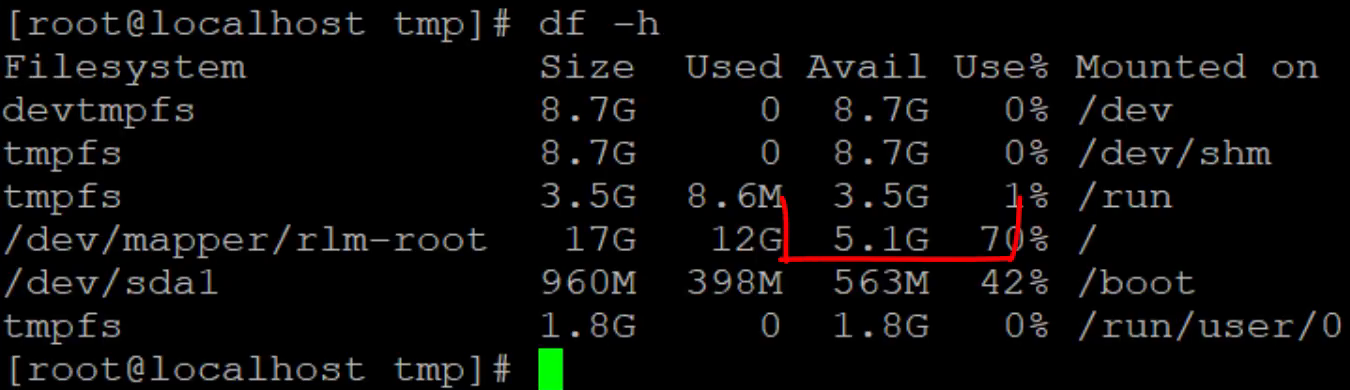
04:55 — The baseline: 12G used and 5.1G available on the root filesystem. The red annotation is part of the original recording. View this moment in the video.
Delete the file, then check both views
A directory listing showed big-demo.log with a size of 10G. In the video, I removed it with rm -rf big-demo.log. The GitHub lab uses the simpler rm big-demo.log, which is sufficient for this regular file and is the version to use when reproducing the lab:
rm big-demo.log
ls -lh
df -h
The next ls -lh no longer listed the file. Its total line changed from 10G to 0; the unrelated service directories in /tmp remained. But the root filesystem row in df -h still showed 12G used, 5.1G available, and 70% usage.
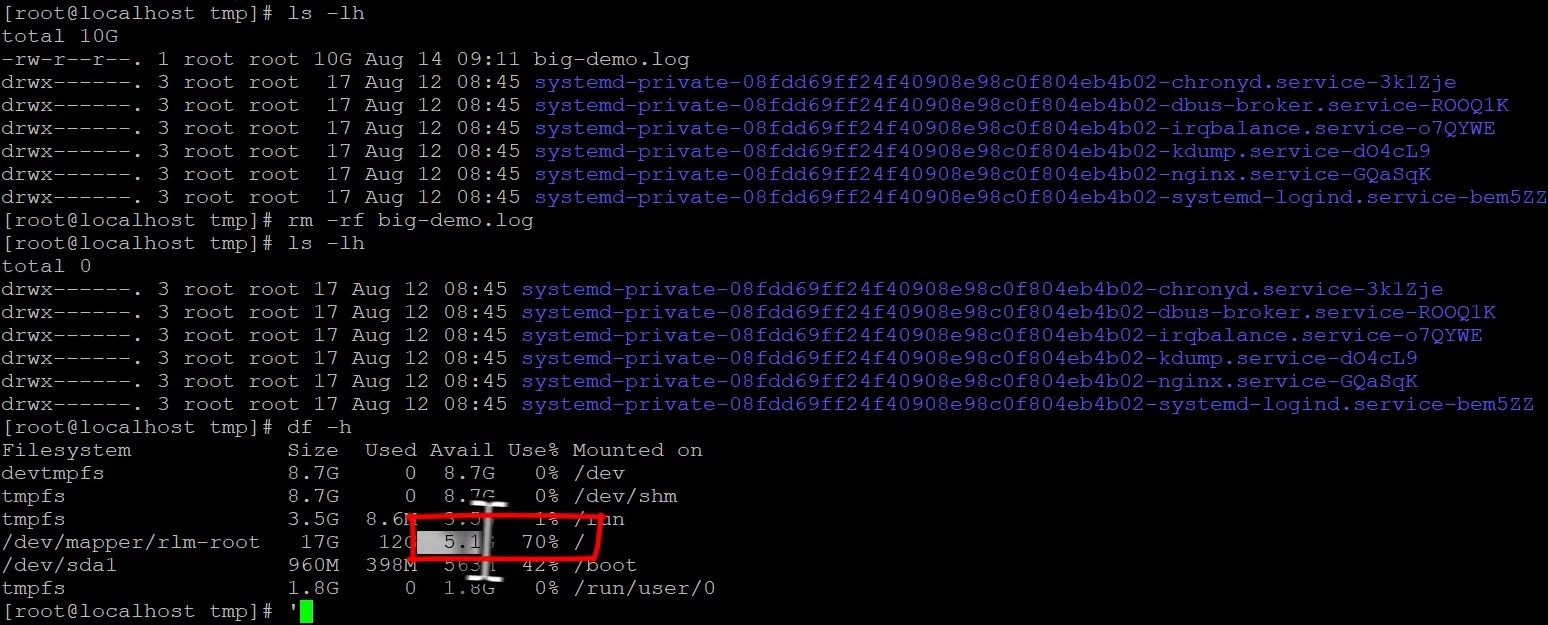
05:43 — The filename has disappeared, but filesystem usage has not changed. The recording's command and annotations are preserved. View this moment in the video.
ls and df are answering different questions. The listing shows directory entries. df reports filesystem space usage, including space still allocated to this open file. A successful deletion does not prove that its blocks have become available. The GNU df manual page describes that filesystem-level view.
Find the process holding the deleted file
This was the diagnostic command in the recording:
lsof +L1
The +L1 selection asks for open files with a link count below one: files that have been unlinked. The lsof manual documents this option and the output fields.
The important row was:
COMMAND   PID USER FD TYPE DEVICE    SIZE/OFF NLINK     NODE NAME
python3 13617 root 3w  REG  253,0 10737418240     0 16777352 /tmp/big-demo.log (deleted)

07:10 — The evidence connects the missing filename to a live process and a 10 GiB file. Other deleted objects also appear in the output. View this moment in the video.
Read the fields together:
python3, PID13617: the process I started for this lab.3w: file descriptor 3, open for writing.10737418240: the file's size in bytes, matching theddoutput.NLINK 0: no hard links remain./tmp/big-demo.log (deleted): the deleted pathname associated with the open file.
The output also contains small /memfd: objects belonging to other processes. Seeing (deleted) is not, by itself, a reason to stop a service. Here, the process identity, size, and pathname point to the file we deliberately created.
The recorded shell has root privileges. On a real host, insufficient permissions can limit what lsof reveals; an empty result from an unprivileged session is not conclusive. The written lab filters with lsof +L1 | grep big-demo because it already knows the test filename. During an unfamiliar incident, inspect the broader output before narrowing it.
Why Linux keeps the space allocated
There are three pieces to keep separate: a directory entry names a file, an inode describes the file, and a process uses an open file descriptor to access it.
Removing the directory entry does not invalidate an existing descriptor. The process can continue using the file after its last name disappears. In this lab, Python's f still referred to that open file while the process slept.
Once the last hard link is removed and the remaining open references are released, Linux can reclaim the storage. That behavior is specified in the Linux unlink(2) documentation.
This explains the whole sequence: rm succeeded, ls stopped showing the name, and df continued accounting for the allocated space. Running another deletion command against the now-missing name would not close Python's descriptor.
Release the file and verify recovery
I first checked jobs -l to confirm the background job. Because this was my disposable test process, I could terminate it without interrupting a real application.
In the recording, the recovery sequence was:
kill 13617
jobs -l
df -h
13617 is the PID from this recording, not a PID to copy onto another machine. Find and verify your own lab process first. Also, jobs -l describes jobs belonging to the current shell; it is useful here because that shell started Python, not as an inventory of production services.
Plain kill sends SIGTERM by default. The Python job then appeared as Terminated. Process exit released its open descriptor, and the next df -h showed:
Filesystem             Size  Used Avail Use% Mounted on
/dev/mapper/rlm-root     17G  1.9G   16G  11% /
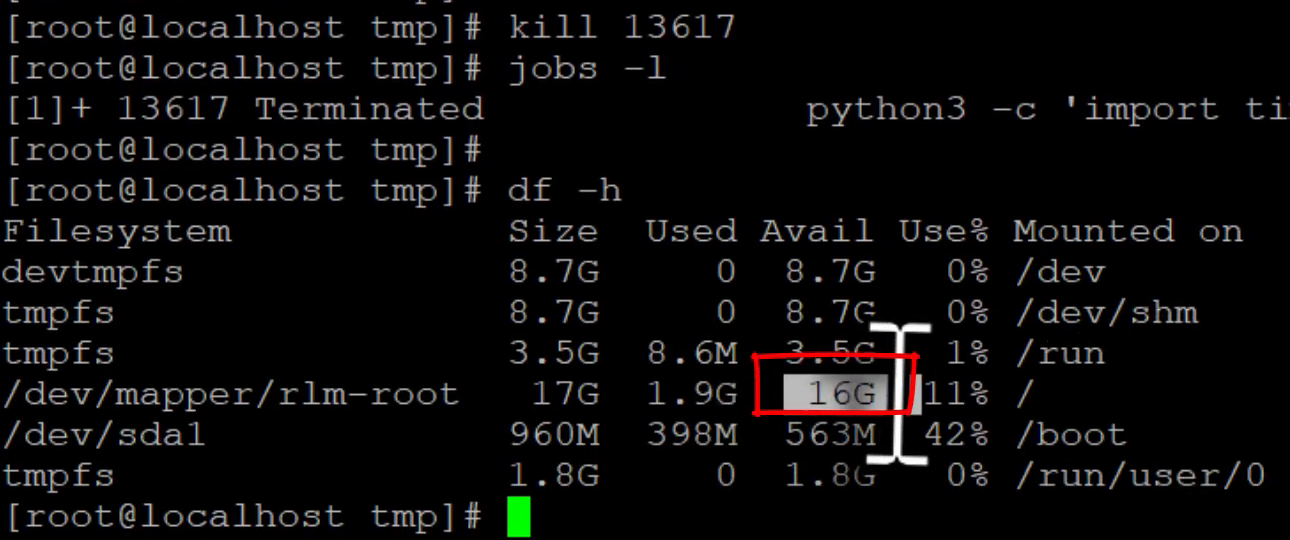
08:11 — The lab process has exited and the space is available again. This crop retains the termination status and filesystem measurements. View this moment in the video.
| Recorded state | Used | Available | Usage |
|---|---|---|---|
| File exists; Python holds it open | 12G | 5.1G | 70% |
| File deleted; Python still holds it open | 12G | 5.1G | 70% |
| Python terminated | 1.9G | 16G | 11% |
These are the human-readable, rounded values shown by df -h, not byte-exact measurements to subtract from one another. The file's exact size comes from dd and lsof.
No reboot was needed in this experiment. The successful recovery was demonstrated by the final filesystem measurement, not merely by the absence of the filename.
Make the production decision before sending a signal
Finding the PID is the Linux part. Deciding what to do with it is the production part.
In this lab, I owned the process and knew why it existed. On a server, that PID could belong to an application, database, or logging agent. Stopping it might free space and cause a larger incident at the same time.
Before acting, establish which service owns the descriptor, what depends on it, and whether the service has a documented way to close and reopen its logs. If recovery requires a restart, account for traffic, replicas, failover, and the service's shutdown procedure. A reopen or restart only resolves this particular problem when it releases all remaining references to the deleted file.
There is no universal signal that means “reopen your logs” for every application. Follow that application's documented behavior. Likewise, SIGTERM gives a process an opportunity to handle shutdown; it is not a guarantee that every application exits cleanly or immediately. SIGKILL cannot be caught, blocked, or ignored and bypasses application cleanup. See the kill manual and Linux signal documentation.
After the chosen recovery action, verify available space on the affected filesystem and check service health. Rechecking open deleted files is a useful production follow-up; the recording's final verification is the df -h result shown above.
Then investigate why the file grew so large. Did log rotation fail? Was debug logging left enabled? Did an error spike generate unexpected volume? Reclaiming space handles the immediate symptom. Correcting the cause prevents the next disk-space incident.
Take this into your next investigation
When a large file disappears from a directory but filesystem usage stays high, look for an open deleted file. Confirm the owning process, the size, and the affected filesystem before deciding on recovery. Release the reference through an appropriate service action, then measure again.
Practice the sequence in the complete GitHub lab, and keep the CTRL+CHAOS Linux troubleshooting cheat sheet nearby for related command-line work. The original walkthrough below shows the terminal investigation and the reasoning behind the recovery decision.